Emsai Agents
Run Claude Code, Codex, Copilot CLI and Antigravity CLI sessions side by side in one native window, and answer them from anywhere.
Emsai Agents is the window where your coding agents work. Each session is a real session of the agent you installed, in one of your repositories, with its own settings, plugins and MCP servers. Emsai draws it natively: you see each change before you allow it, you answer its questions, approve its plan, stop it or queue the next message, from the window or from the island.
Open it with ⌃⌥J or the Open Agents action. While its window is open, Emsai Agents shows in the Dock and in ⌘⇥. Closing the window doesn’t stop anything: your sessions go on and keep reporting to the island. ⌘Q quits it, and asks first when a session is working or waiting for you.
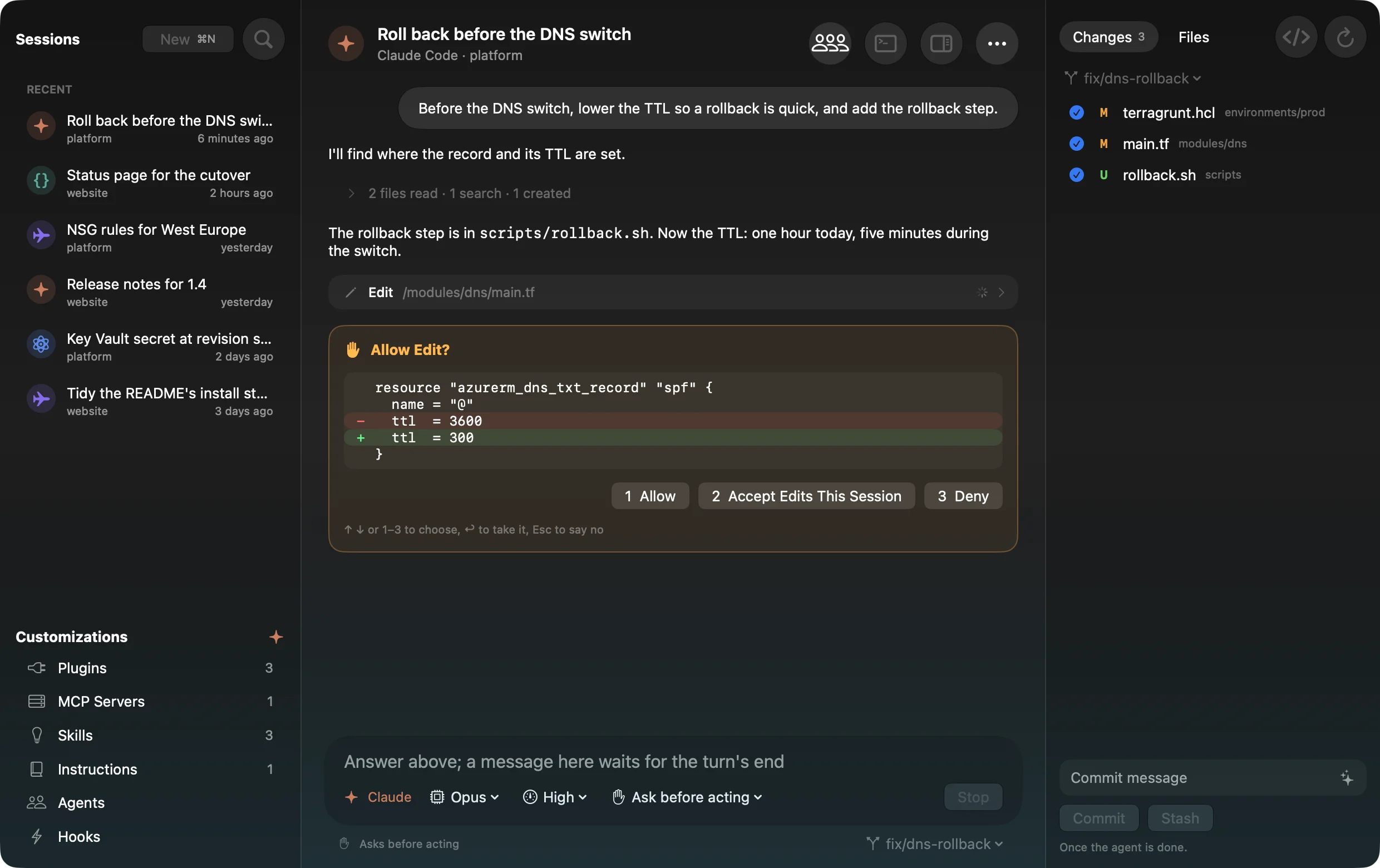
The window
- Left: Sessions. New (⌘N), a search, then your open sessions (a blue dot while one works, orange when it waits for you, green when idle), the recent ones (a click reopens one, its conversation read back), and the sessions running in a terminal elsewhere. Below, Customizations lists the agent’s Plugins, MCP Servers, Skills, Instructions, Agents and Hooks, read from its own files and never changed.
- Middle: the session. The conversation and, under it, the message field.
- Right: Changes and Files. The repository’s changes, each file’s diff on a click, and a file tree, refreshed as the agent works. The panel button in the session’s header hides it.
Choose your agents
Settings › Coding Agents lists every agent installed on this Mac, each with its switch: installed doesn’t mean wanted. An agent turned off isn’t offered anywhere in Emsai (new sessions, Auto, reviews, debates, the chat), but its sessions still show in the island. Default agent is the one New Branch starts and Agent in Repo offers first. No agent is required: Emsai works with whichever ones you installed and turned on.
Each agent’s hooks row (Install, then Check) installs Emsai’s plugin through the agent’s own command line, so its terminal sessions report to the island too. Antigravity needs it to run in the window: that’s how Emsai asks you before its tools act.
Start a session
New (⌘N) takes three steps:
- The repository, in a list that narrows as you type (↑ ↓ ↩), or Other Folder…. Workspaces sits beside it (⇥; see below).
- The agent: Claude Code, Codex, Copilot or Antigravity, or Auto to let Emsai pick. The agent starts right away, so your first message doesn’t wait.
- Your idea. Type it and press ↩.
The branch menu under the message field switches to a recent branch, finds one by name, or New Branch… makes one: its name, and the branch it starts from (the default remote branch offered first, fetched first; a local one or origin’s found by name), never tracking it.
Settings › Coding Agents › New sessions in Emsai Agents: Open sessions in decides where Agent in Repo, New Branch, Unfinished Work, Find Agent Session and the brief open a session (Emsai Agents, or a terminal; ⌥↩ in their lists takes the other one). Start with keeps the model, effort and mode of your last session, or fixed ones you choose.
The conversation
Your messages, the agent’s answers in Markdown with highlighted code (select across an answer and copy it, or hover it for Copy, which takes the whole answer as shown, ⌥-click for its Markdown; a code block has its own Copy), and each tool on one line: a click shows the diff, the command and its output, or the result. Tools used in a row fold into one line (“7 commands · 5 files edited · 3 created”, failures in red).
When the agent asks, an orange card shows up in the conversation:
- A tool to allow: its diff or command, with Allow, Deny, and the “always” choice the agent proposes (for Claude Code: Accept Edits This Session, Always Allow or Allow This Folder). ↩ alone doesn’t allow: you pick a choice with ↑ ↓ or its number first.
- A question: its options, then Answer (or Skip).
- A plan: Approve (which leaves plan mode) or Keep Planning.
From the island too. While you’re at the Mac, what a session asks also comes to the island: Allow, Deny or Open for a tool, the question answered right there, Open for a plan. Away from the Mac, you get a “needs you” notification instead. Answer in one place and the other one clears.
The message field
- ↩ sends, ⇧↩ adds a line.
- @ tags what the message is about: a file or folder, a repository of the workspace, one of Claude Code’s subagents, or a terminal tab (@terminal). ⇥ takes the first one offered.
- / offers the agent’s own commands and skills, as it lists them.
- ⌘V with a picture (a screenshot, a copied image) attaches it to the next message. Claude Code, Codex and Copilot see pictures; Antigravity takes text only.
- Queued messages: sent while the agent works, a message waits under the conversation, greyed, and goes when the turn ends. ✕ takes it back; ↑ on it sends it now.
- Stop (or Esc) ends the current turn only: queued messages follow.
- Menus under the field set the model, the effort and how the agent asks before acting, each agent with its own choices (for Claude Code: Ask before acting, Accept edits, Auto, Plan first, Bypass permissions; for Codex: Ask before acting, Ask when needed, Auto in its sandbox, Auto with no sandbox).
- The header shows what the session cost since you opened it, at API prices: an indication only, your subscription isn’t billed per token.
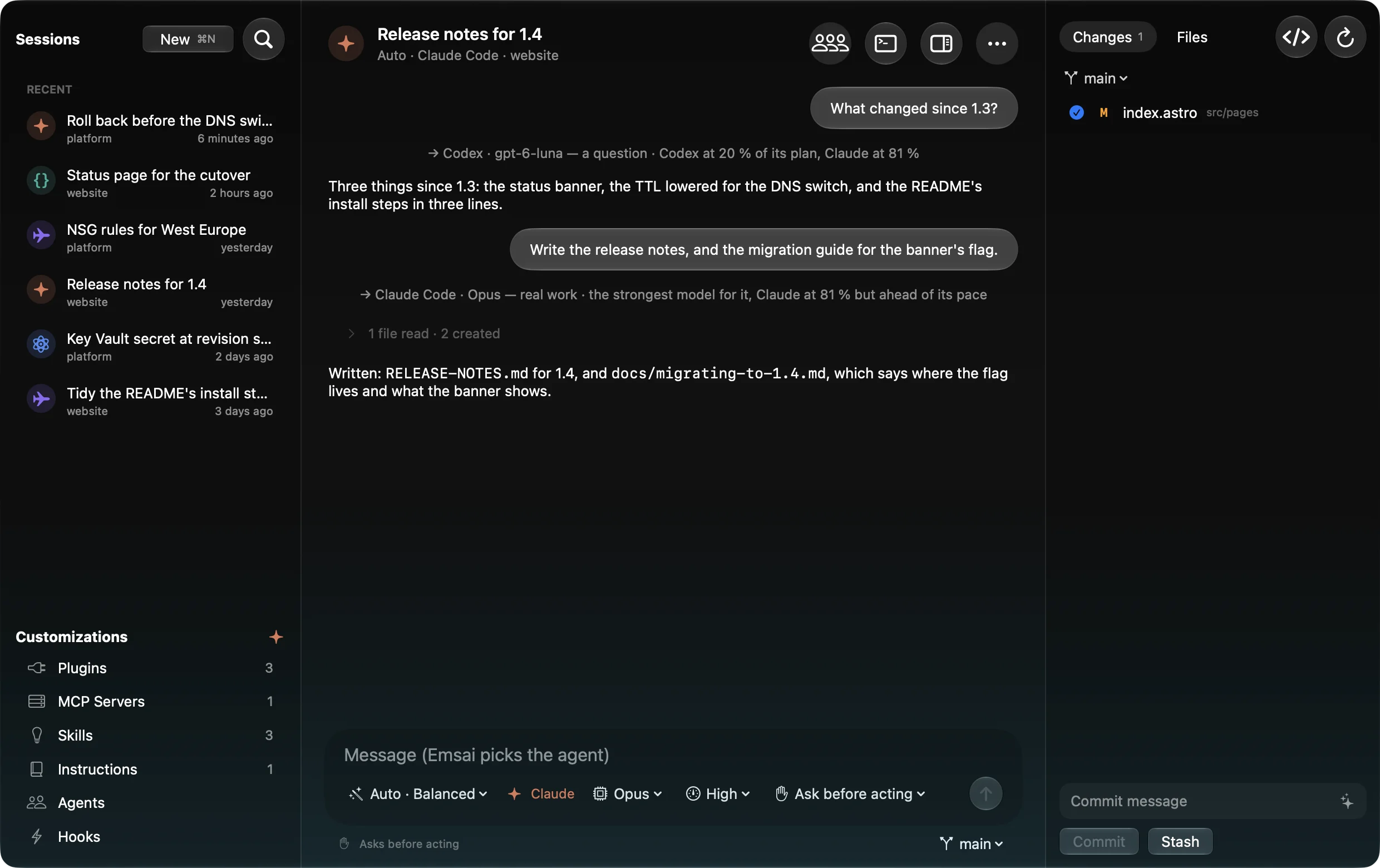
Auto: Emsai picks the agent
With two agents or more turned on, Auto comes first in the agent step. For each message, Emsai picks the agent and the model by the task (a question, a small change, real work, a review, infrastructure, classed on your Mac) and by what each plan has left. A plan at 95 % is left out, and the current agent stays when another wouldn’t do clearly better.
A line before each answer says who takes it and why. The Auto menu in the message field shows the last choice and lets you pick the next message’s agent yourself. The lean is set in Settings › Coding Agents › Auto sessions lean, or per session: Spare my plans, Balanced or Best model. When the agent changes, the new one is told what happened since it last took part.
Workspaces: several repositories at once
A workspace is a name and several folders, repositories or not, none first. A session in one works across all of them, and the agent is told it’s in a workspace with these folders. Make one in New Session › Workspaces › New Workspace… (Add Repository…, several at once, or Add Folder…); right-click to change or delete it. Settings › Repositories lists them too, and Spotlight has New Session in Workspace, Create Workspace and Add Folder to Workspace. Nothing is written in your folders.
In a workspace, the right panel shows the repositories In Play: the ones the agent touched, the ones you tagged, the ones you open with Open another repository…. Click one for its changes, files and commit.
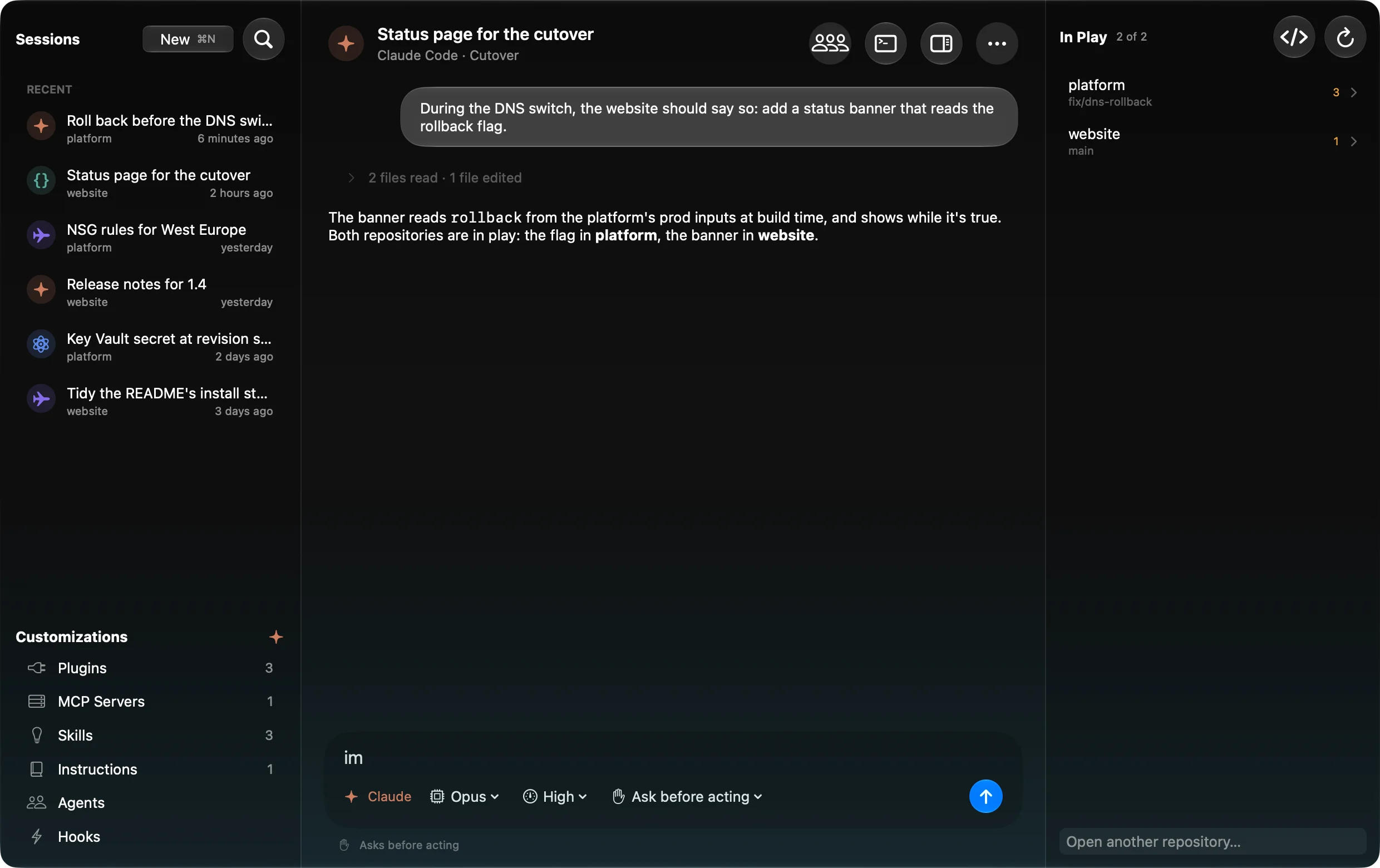
Repositories added to one session. Without a workspace, ⋯ › Add Repository… adds other repositories to this session alone (several at once), kept with it when it’s reopened. The agent may read and change them and is told with your next message; they can be tagged with @, and the right panel lists them with their changes. Remove Repository takes one away. In a workspace’s session, the same adds a repository outside the workspace, which itself doesn’t change.
Changes, commits and your editor
- Commit: tick the changes that go in (all by default), write a message or let ✨ write it from the diff, then Commit, signed as in your terminal.
- Push N Commits pushes to the branch of the same name on origin, never from main or master: changes reach those through a pull request.
- Stash puts every change aside, new files included; the stashes listed below can be applied or deleted.
- None of this while the agent is working.
- Files in tabs: a file picked on the right opens in a tab over the session, its lines numbered and coloured, and you edit it there. ⌘S (or Save) writes it back as it was read: a script stays executable, a Latin-1 file stays Latin-1. Until saved, a dot replaces the ✕ on the tab, and closing the tab or quitting asks. A file the agent changes on disk follows into the tab while you haven’t edited it; otherwise the header says Changed on disk, with Reload or Keep Mine. ⌘F finds in the file (⌘G the next match). A Markdown file opens rendered, Source a click away. ⌘W closes the tab, ⇧⌘T brings it back.
- </> opens the repository and its changed files in your editor (Settings › General › Code editor); a file’s tab opens that file there.
The terminal under a session
⌃` (or the terminal button) opens real terminals in the session’s folder, with colours, completion, vim or top.
- Tabs: + or ⌘T opens one, ✕ or ⌘W closes it, ↺ restarts its shell. A tab is named after the command it runs.
- zsh or PowerShell: + asks which for each tab. The default shell, used by ⌘T and the first tab, is set in Settings › Coding Agents › Terminal in Emsai Agents › Default shell, or from the + menu’s Default Shell. PowerShell is offered once installed.
- !command in the message field runs the command in that terminal, interactively (
sudocan ask for your password there). The agent isn’t told. - Tag a terminal in a message: @terminal (the tab shown), @terminal-2 (tab 2), or the terminal’s @ button. The agent gets the text you selected in it; else the command running and its output so far; else the last command, its exit status and output. Handy for “fix this failing test”.
Rename, continue elsewhere, close
- Rename… (right-click a session in the list) gives it your own title; the agent’s won’t replace it.
- Continue in a Terminal (the ⋯ menu, or right-click) stops the session here and resumes the same conversation in a new tab of your terminal.
- Sessions running in a terminal show in the list under In a Terminal. Continue Here resumes one in the window once you’ve quit it in its terminal; while it still runs there, Open Its Terminal takes you to its tab.
- Close Session stops it; it stays in the recent list.
Questions you can answer from the island
The island shows the question that ends an agent’s reply, so you can answer without switching windows. A short question comes with what was said just before it. Emsai also tells Claude Code and Codex, at each session’s start, to end with a question that says what it’s about. Turn it off in Settings › Coding Agents › Questions you can answer from the island. For Codex, trust Emsai’s new hook once in /hooks.
Secrets sent to an agent
When a token, key or password of a known kind goes to an agent (pasted into a prompt, or printed by a command like cat .env), it has reached the agent’s provider: rotate it. Emsai tells you without interrupting: a red key waits in the island, folded at the notch, and never opens it on its own, even in a call. Point at it to see what went where, then OK. With the island off, it’s a notification. Values are never stored or logged by Emsai.
Turn it on or off in Settings › Coding Agents › Secret alerts in Claude Code sessions. It needs Session notifications on.
Keys in the window
| Key | Does |
|---|---|
| ⌘N | New session |
| ⌘1 … ⌘9 | Open sessions, in order |
| ⌥⌘↓ / ⌥⌘↑ | Next / previous session |
| ⌘L | The message field |
| ⌘F | Search every session; in a file’s tab, find in the file |
| ⌘S | In a file’s tab, save it |
| ⌃` | The terminal |
| ⌥⌘0 | The changes and files panel |
| Esc | Refuse what the agent asks, else stop its turn |
To have the other agents review a session’s branch or debate a question, see Review and debate. What each agent’s plan has left is in Agents’ usage.