The island
See what runs on your Mac at a glance, answer your agents and handle messages, calls and downloads from the notch.
The island is a black shape at the top centre of the screen you’re using. On a Mac with a notch, it sits on the notch, so the notch seems to grow. On a screen without one, it’s a small black tab hanging from the menu bar, always there. It follows the screen the pointer is on.
It’s on by default: Settings › Island › Island at the notch turns it on or off.
Activities: what runs, most pressing first
Like the iPhone’s Dynamic Island, the island shows what’s happening, one activity at a time, the most pressing first:
- a coding agent session waiting for you (an orange hand and the project), or a secret sent to an agent (a red key);
- a call (green, with its length);
- a meeting starting within 10 minutes (blue, the minutes left);
- a session at work (a breathing purple dot);
- a build running (a hammer);
- the microphone muted (red);
- a usage window at 80 % or more (orange, red from 95 %);
- Focus (a purple moon) or Keep Awake (an orange cup).
Folded, the first activity wraps around the notch: its icon on one side, its value on the other. A second one shows as a small black circle beside it. When nothing runs, the notch is just the notch.
Hovered for a moment, no click needed, the first activity opens in large with its action: Open for a session, Join for a meeting, Live captions for a call, Turn on for the muted microphone, +30 min or Stop for Focus. Dots under it mean there’s more: swipe sideways with two fingers to go through them. Two fingers up fold the island again.
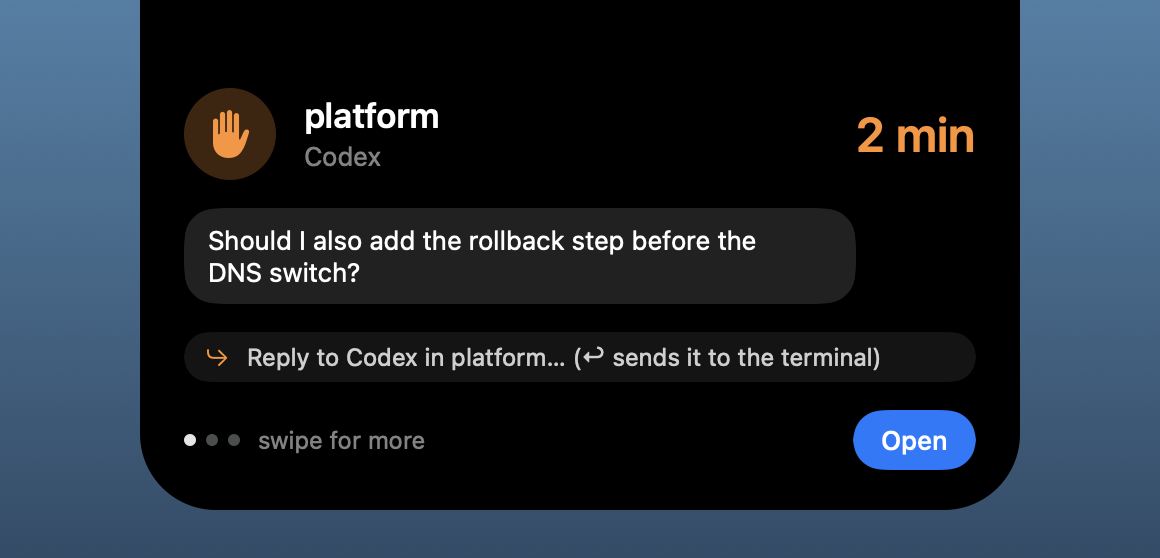
Answering your agents from the notch
When a session waits for you, its question shows in a bubble with a reply field. Type your answer and press ↩: it goes straight to the session, wherever it runs (any terminal, an editor, the Agents window). A long question scrolls with two fingers.
A session still at work has the field too: ↩ queues your next message, sent when its turn ends.
If you’d rather have replies typed into the session’s terminal tab, turn on Settings › Island › Replies typed in the terminal.
Permissions and questions
While you’re at the Mac, an agent’s permission request comes out of the island: the project, the tool and what it would do (the command, the file), with Allow, Deny and Terminal. Terminal, ✕ or no answer within 2 minutes leaves it to the terminal’s own prompt.
When an agent asks you a question with options, they show as rows: one click picks an answer; when several can be ticked, tick them and Send.
- Sessions in Emsai Agents ask this way out of the box, with Open to jump to the window.
- For Claude Code in your own terminal, install its hooks first: Settings › Coding Agents › Claude Code hooks › Install.
- Settings › Island › Permission prompts turns this off: the terminal asks as usual.
Messages
While you’re at the Mac (screen unlocked, no app in full screen), Emsai’s notifications come out of the island instead of Notification Center: an agent done or waiting, a secret sent to an agent, usage alerts, chat answers, the morning brief.
- Click a message to do what its notification would do, or click one of its buttons.
- Dismiss it with ✕, or swipe two fingers up on the island.
- Pointed at, a message stays put. Left alone, it goes after a few seconds.
When you’re away, locked or in full screen, they stay ordinary notifications. Settings › Island › Messages turns this off.
Short flashes come out of the notch too: what you just copied (a secret stays masked), plugged in or unplugged, the battery at 20 % and 10 %, a Bluetooth headset connecting with its batteries. Each has its switch in Settings › Island (Copies, Headsets…).
The drawer: Focus, Keep Awake and an overview
Hover the island when nothing runs (or swipe past the last activity) and the drawer opens, in modules like Control Center:
- Agents: the sessions at work or waiting, each with the step it’s at (the file it edits, the command it runs).
- Copies: your last three copies. Drag one into a window, or Copy it back to the clipboard.
- Usage: your agents’ current usage window, and the CPU when Settings › Mac & Network › Mac state in the menu bar is on.
- Awake (keeps the Mac awake 2 h) and Focus (1 h): round buttons, lit in their colour when on; click again to stop.
Focus keeps the Mac awake and makes messages quiet (they go to Notification Center), but what needs you — a permission, a question, a secret — still comes out of the notch. It survives a restart. A macOS Focus can drive it too: System Settings › Focus › a Focus › Focus filters › Add › Emsai, then Emsai Focus or Keep the Mac awake.
Volume and brightness
The volume keys show their level around the notch instead of macOS’s panel: the speaker on the left, the level on the right. Hold ⌥ with a key to open macOS’s Sound settings as usual.
The brightness keys can show there too: Settings › Island › Display brightness (off by default). It relies on a private part of macOS, so a macOS update may stop it; macOS’s own panel then takes over.
Settings › Island › In the island turns this off. macOS’s panel still shows in an app’s full screen or on an output without a volume (HDMI).
Calls and meetings
When an app takes the microphone for a few seconds (Teams, Zoom, a web call, FaceTime), the island shows a call and offers Live captions: see Live captions. Settings › Island › Offered in calls turns the offer off.
In a call, the island stays out of your way. Nothing opens it by itself: an agent done or asking, a usage alert or a tip waits, and when the call ends one message says what came. What still needs you (a question, a permission) follows. What you ask for yourself, with a shortcut or from the island, still shows.
- ⌃⌥K mutes the microphone for every app; a red microphone shows on the island while it’s muted.
- Next meetings (off by default): today’s meetings from Calendar, a countdown in the last 10 minutes and Join a minute before. macOS asks for Calendar only when you turn it on.
- Meeting mode (off by default): a call starting turns Focus on and pauses Music or Spotify; when it ends, everything goes back.
Downloads
With Settings › Island › Downloads on, a finished download comes out of the notch: drag it into a window or the Finder, or use Show, Shelf or Open. macOS asks for access to your Downloads folder when you turn it on.
Other things in Settings › Island
- Reopen what you quit: ⌃⌥B reopens the last apps you quit.
- Charged: a message to unplug when the battery reaches 80, 85 or 90 %.
- Apps running hot: an app busy in the background for half an hour, or whose memory keeps growing past 4 GB, is pointed out once, with Quit or Relaunch.
Files you want to keep for a moment go on the Shelf, at the screen’s edge.