Mac, network and browsers
Watch your Mac’s state, free disk space, check the network, and open each link in the right browser profile.
Emsai covers the Mac around your work: its state in the menu bar, cleanup, network checks, updates, and your browser profiles, with each link opened in the right one.
Mac state in the menu bar
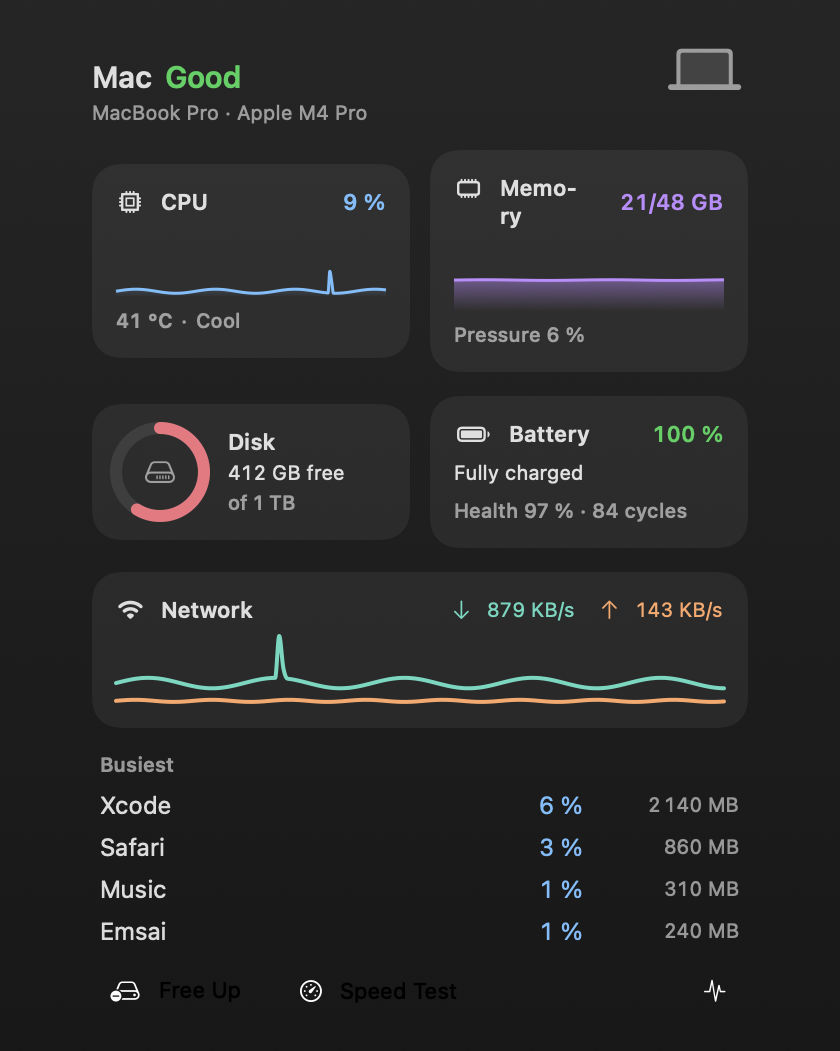
Emsai’s mark (• ● •) in the menu bar opens the Mac’s state; its middle dot fills with the CPU load, orange then red when the Mac works hard. Hover over it, or click it to keep it open. You get:
- A word for the Mac’s state: Good, Busy, Short of memory, Low on disk (under 20 GB free) or Hot.
- CPU, GPU and memory load with their last 5 minutes, how warm the Mac runs, disk space, the battery with its health and cycles, network speed down and up, and the busiest apps.
- Free Up, Speed Test and a button for Activity Monitor.
Click a card to unfold its details: each CPU core, the GPU’s load and the apps drawing on it, memory by kind, disk space by place (Applications, Downloads, developer caches…), the battery’s capacity now and when new, and the network’s interface, addresses and public IP. Hover over an app in a list to quit it. Temperatures show when the Mac provides them. Nothing needs to be allowed for any of this.
To turn it on or off, use Mac state in the menu bar at the top of Settings › Mac & Network. If you’d rather the panel open on click only, turn off Settings › General › Menu bar panels open on hover.
Free disk space
Free Disk Space (or Free Up in the panel) first shows what each cache holds. Then you clean one row, or all of them, in the background, and a card tells you how much space was freed.
| Row | What it cleans | Comes back |
|---|---|---|
| Xcode DerivedData | Xcode’s build folders | At the next build |
| Homebrew | Downloads and old versions | At the next install |
| npm cache | npm’s download cache | At the next install |
| Docker | Images no container uses, and the build cache (skipped when Docker isn’t running) | At the next pull or build |
| Terraform & Terragrunt | Providers and modules in your repositories’ .terraform folders, .terragrunt-cache folders, plugin caches |
At the next init |
| Browser caches | Dia, Chrome, Brave, Edge, Vivaldi, Opera, Chromium: cached files only. Logins, history, cookies and site data are kept. Quit a browser first, or it’s skipped | As you browse |
A cleaned .terraform folder keeps its selected workspace and backend settings: you just run init again.
Quit apps, kill a process
- Quit Apps quits every app except Finder, Emsai and the apps you keep. Choose those in Settings › Mac & Network › Kept Open by Quit Apps.
- Kill Process lists your processes by CPU use, searchable by name. It quits an app cleanly, and has a Force option.
- Quit an app by mistake? ⌃⌥B reopens the last apps you quit.
Updates
Update Everything runs your update command in a new terminal tab. The default is brew update && brew upgrade when Homebrew is installed, and a macOS software update check otherwise. It runs in your usual shell, so your aliases and password prompts work. Change the command in Settings › Mac & Network › Update Everything.
Network checks
Nothing to install and no account needed. Run these from Spotlight or the ⌃⌥O palette:
| Action | Does |
|---|---|
| DNS Lookup | A, AAAA, CNAME, MX, NS and TXT records of a name, using the system’s resolver or Cloudflare, Google or Quad9, so you can compare during a propagation |
| Check Certificate | Whether a host’s certificate is trusted, its TLS version, its expiry with the days left, its issuer and the names it covers |
| Test Port | Whether host:port is open, refused, unreachable or filtered |
| Who’s on Port | Your processes listening on a port; ⏎ stops one |
| Subnet Calculator | Network, mask, host range, broadcast and usable addresses of a CIDR (Azure’s reserved addresses too), and the next subnet |
| Speed Test | macOS’s network quality test, in about 15 seconds |
| Copy Public IP | Your public IP on the clipboard (⌃⌥I) |
| Set Network Profile / Toggle Network Profile | Switch between your home profile (fixed IP, router, DNS) and automatic. Set it up in Settings › Mac & Network › Home Network Profile |
Keep the Mac awake, and more
- Keep Awake prevents sleep for a set time or until you stop it, with the display on or off. ⌃⌥W keeps the Mac awake for 2 hours, or stops it. Emsai’s mark then has orange side dots (purple while an agent keeps the Mac awake), and the Mac state panel shows an Awake card, with the time left, the day and the week, to extend or stop it; the notch shows it too.
- Set Audio Output / Set Audio Input switch your sound devices.
- Clean the Mac turns the keyboard off so you can wipe it (the trackpad stays on for Done). Then it turns the screen black with the trackpad off, so the dust shows. Esc ends it, and each step stops on its own after 3 minutes.
Browser profiles: each link in the right one
If you keep one browser profile per client, plus one for work and one for personal use, Emsai opens each link in the profile its address calls for.
- In Settings › Clients & Browsers, pick your Browser. Its profiles are read automatically.
- Under Link rules, add a rule per address:
domain[/path]→ profile. A domain covers its subdomains, and a path covers the pages under it. When several rules match, the longest one wins, so order doesn’t matter. There are no rules until you add them.
| Rule | Profile |
|---|---|
dev.azure.com/contoso |
Client |
github.com/my-company |
Work |
git.home.example |
Personal |
- Click Make Default under Default browser, and confirm when macOS asks. From then on, every link you click in any app goes through Emsai to its profile. Give back to … makes your browser the default again.
When a link matches no rule, a picker asks which profile to use. Tick Always open … in this profile to save the rule, or pick Current Profile. In the picker, ↑ ↓ select, 1…9 open a profile at once, ⏎ opens, and Esc cancels. Turn this question off with Ask for unknown links. Hold ⌥ while clicking a link to choose its profile anyway, or ⇧ to copy the clean link instead of opening it.
Before matching, Outlook Safe Links are unwrapped to the real address, and tracking parameters (utm_*, fbclid…) are removed (Remove tracking parameters). Links opened from Emsai itself, from the clipboard or chat answers for example, follow the same rules. The Open Link in Profile action opens a link, or the one on the clipboard, the same way.
The Browser profiles switch is at the top of Settings › Clients & Browsers. If you turn it off, links open in a plain browser.
Clients’ tags on your copies
With Browser profiles on, turn on Clipboard contexts in Settings › Clients & Browsers. Each copy is then tagged with the client it comes from: the browser profile of the page, or the repository open in your editor or terminal. Emsai asks before you paste a client’s copy into another client’s context (Ask before pasting into another context). See Clipboard.
Supported apps
- Browsers for profiles: Dia, Google Chrome, Brave, Microsoft Edge, Vivaldi, Opera and Chromium. Dia asks once to let Emsai control it. Safari, Firefox, Zen, Arc and Orion profiles aren’t supported yet.
- Terminals (Settings › General › Terminal, where commands and sessions open): Warp, Terminal, iTerm, Ghostty, kitty, WezTerm and Alacritty. Terminal and iTerm ask once to let Emsai control them.
- Code editors (Settings › General › Code editor): Cursor, Visual Studio Code, VSCodium, Zed, Windsurf, Xcode, Sublime Text, Nova, BBEdit, TextMate, Fleet, and the JetBrains IDEs (IntelliJ IDEA, PyCharm, GoLand, WebStorm, Rider, CLion, PhpStorm, RustRover) and Android Studio.