Windows
Snap windows to a grid on each screen, switch apps and windows with thumbnails, and find any window by its title.
Emsai arranges your windows from the keyboard with a grid on each screen, switches apps and windows with thumbnails, and puts windows back where they were when you plug a screen back in.
Turn it on
Window management is off on a new Mac, because it adds a dozen global shortcuts. Turn on Window management, the switch at the top of Settings › Windows. It uses the Accessibility permission. If Emsai doesn’t have it yet, Settings › Windows shows an Allow… button.
A grid on each screen
macOS tiles windows in halves and quarters. Emsai gives each screen its own grid instead: 2×2, 3×2, 3×3, 4×2 or 2×1. A wide screen (21:9, 32:9) starts on 3×3, and the others on 2×2. To pick a screen’s grid, go to Settings › Windows, where each connected screen is listed, or press ⌃⌥G to cycle through the grids of the screen in front.
These keys act on the window in front:
| Keys | Does |
|---|---|
| ⌃⌥← ⌃⌥→ ⌃⌥↑ ⌃⌥↓ | Move one cell over, keeping the size. Past the left or right edge, the window moves on to the next screen |
| ⌃⌥⇧→ / ⌃⌥⇧↓ | One cell wider / taller |
| ⌃⌥⇧← / ⌃⌥⇧↑ | One cell narrower / shorter |
| ⌃⌥E | To the next screen, at the same place and size in proportion, or where it was last time on that screen |
| ⌃⌥↩ | Fill the screen; press again to put it back |
| ⌃⌥⇧C | Centre on its screen |
| ⌃⌥F | macOS full screen, for apps whose own shortcut doesn’t work |
| ⌃⌥G | Next grid for this screen |
A window that isn’t on the grid yet first snaps to the nearest cells. A maximized window goes to the first or last column, so ⌃⌥← on a full-width window gives you the left half on 2×2, or the left third on 3×3. A window in macOS full screen leaves full screen first.
Find any window: ⌃⌥⇥
⌃⌥⇥ (or the Switch Window action) lists every window of every app, most recent first, with its title, its app and its screen. That’s handy when you have several browser profiles or several terminal windows open. Hold ⌃⌥ and press ⇥ (or ⇧⇥ to go back), then let go to switch. You can also type to filter and press ⏎. Windows in other Spaces don’t show.
A visual ⌘⇥ and ⌥⇥
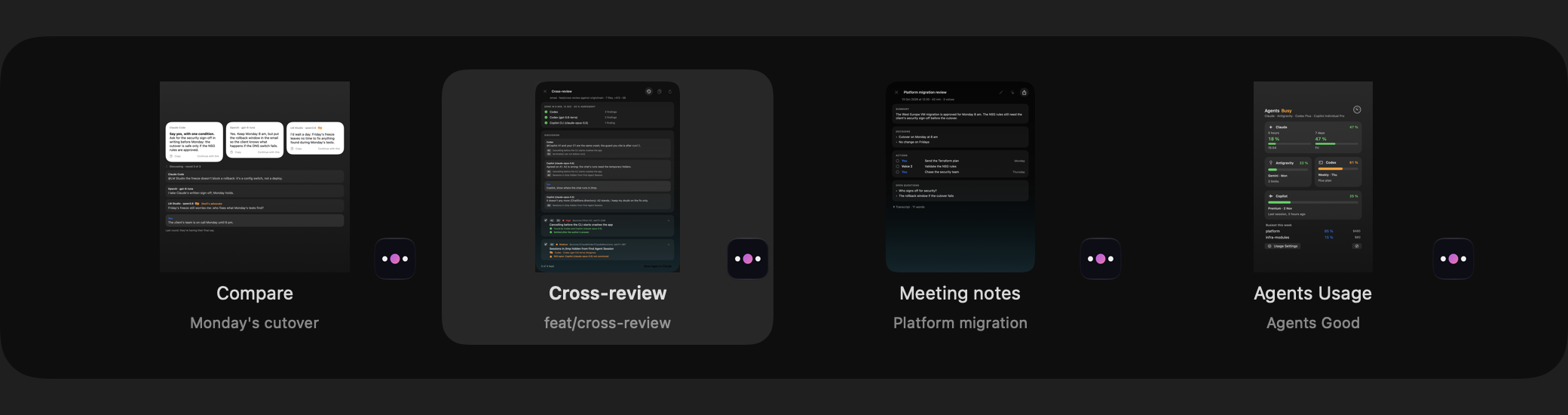
Emsai can replace macOS’s app switcher:
- ⌘⇥ shows your apps, most recently used first, plus Emsai’s own open windows (the chat, the scratchpad, a review…).
- ⌥⇥ shows the windows of the app in front.
Keep holding ⌘ (or ⌥): ⇥ moves on, ⇧ moves back (the arrow keys work too), and letting go switches. Esc cancels, and a click picks a window. A quick ⌘⇥ goes back to the previous app without showing the panel.
This is off on a new Mac, because it takes over macOS’s ⌘⇥. Turn on Visual ⌘⇥ and ⌥⇥ in Settings › Windows. Turn it off and macOS’s own switcher comes back.
- ⌘⇥ and ⌥⇥ show: Thumbnails (the default) or Icons with the window titles.
- Thumbnails need Screen Recording, which macOS asks for the first time. Without it, you get icons. The keys themselves need Accessibility.
- You can change both shortcuts in Settings › Keyboard Shortcuts › Switcher. The modifier you set there is the one you hold.
Windows go back when screens change
When you go from your laptop alone to your laptop with an external screen, and back, Emsai puts your windows back where they were for that set of screens. It notes where they are as you work, and restores them a few seconds after the screens change, once apps have moved their own windows. You can turn this off with Put windows back when screens change in Settings › Windows.
Emsai’s own windows
The chat, the scratchpad, Settings, Emsai Agents and the other work windows are standard macOS windows. They remember their place, work with Spaces, Mission Control and full screen, and when you close one, the focus goes back to the app you came from. If one gets lost off screen, Settings › General › Window positions › Reset brings every Emsai window back to the middle of the screen under the pointer.
Change the shortcuts
Every window shortcut can be changed in Settings › Keyboard Shortcuts › Windows. See Shortcuts and Spotlight for the full list.