Chat and AI models
Ask a question from anywhere, compare several models, and choose which model writes for Emsai.
The chat is a floating panel you can open over any app. It answers through the provider you pick in Settings › AI Models, and each answer is signed with the model that wrote it. If you want an agent to work in a repository with its tools, approvals and diffs, use Emsai Agents instead. A conversation can move there whenever you’re ready.
Open the chat
- ⌃⌥C, or the Open Chat action, opens the panel. Press it again to bring the chat back right where you left it.
- ⌃⌥S sends the text selected in any app to the chat. With nothing selected in a browser, it sends the page you’re on instead (Ask About This Page). This works with Safari, Chrome, Dia, Arc, Brave, Edge and Vivaldi.
- ⌃⌥X lets you ask about a part of the screen that you select.
- From the clipboard or the scratchpad, ⌘⌥A sends the item or the note to a new conversation.
| Key | Effect |
|---|---|
| ⏎ / ⇧⏎ (or ⌥⏎) | Send / new line |
| ⌘N | New conversation |
| Esc | Hide. The answer goes on, and a notification tells you when it’s done |
| ⌘. | Stop the answer |
| ⌘⇧C | Copy the last answer |
| ⌘⇧E | Export the conversation as Markdown |
To attach files, paste an image with ⌘V, or drop images and text files anywhere on the panel. Answers show their Markdown formatting, and code blocks have a copy button. Links open in the right browser profile. Keep saves an answer to your clipboard history as a pinned snippet.
The ✦ menu sets the mode (General, Code, or Translate between your language and English), the model and the export. The model’s capsule in the field names the model and lists the provider’s models (Claude Code’s families, or the list of the API or CLI you picked, with its Default), then Several Models at Once.
History
The clock button lists your conversations. You can search them, and right-click one to pin, rename, export or delete it. Unpinned conversations are deleted after 15 days without activity. You can change this in Settings › Chat › Delete unpinned conversations after, or turn it off to keep them all.
Several models at once
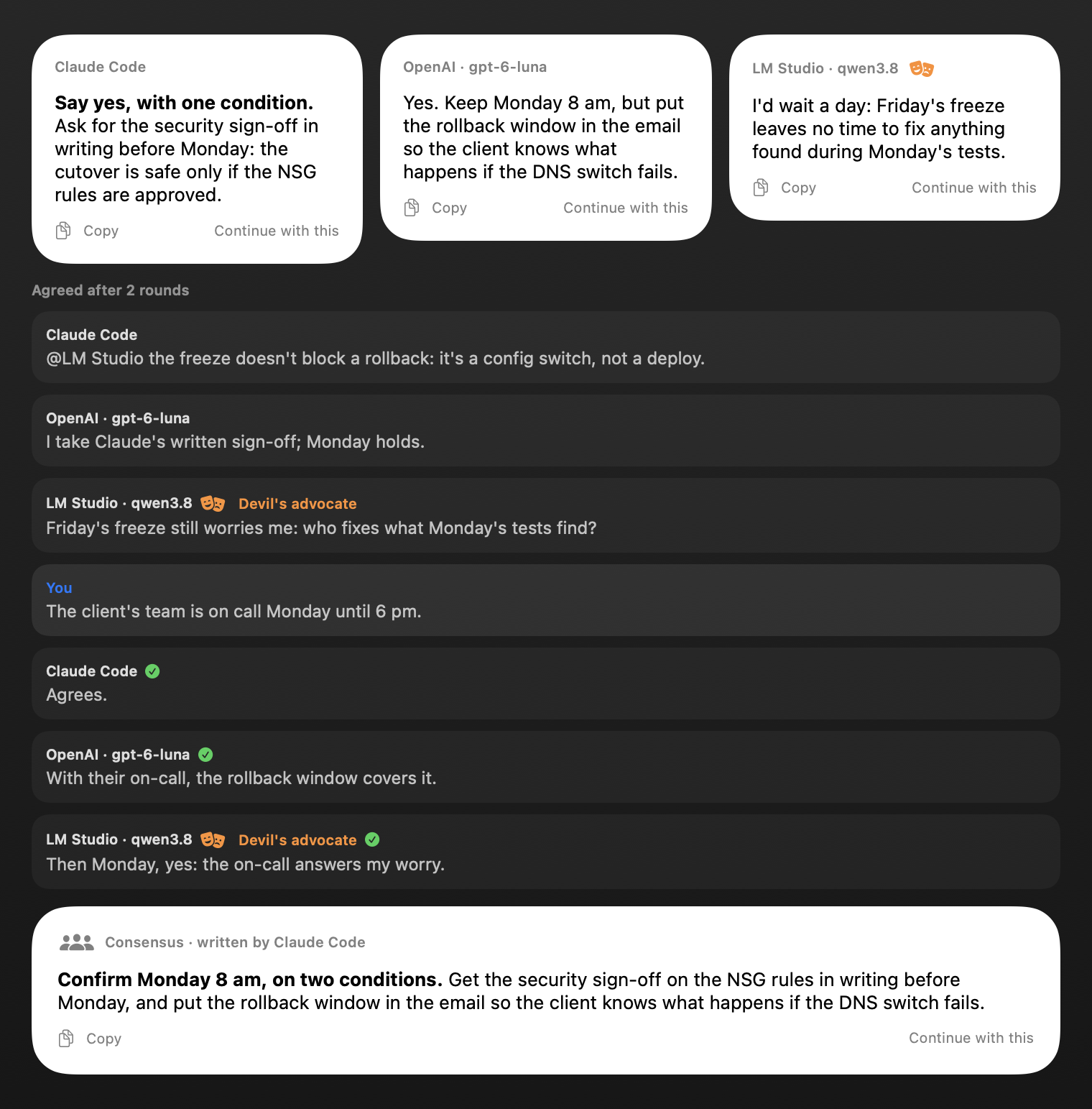
For a decision or a text you’re about to send, ask two or three models the same question and read their answers side by side.
- Click Several in the field to ask three models picked for you from different sources. You can also choose them yourself from the model’s capsule in the field (or ✦ › Several Models at Once), or let the dice pick with Three at Random.
- Each answer comes as a card, with Copy and Continue with this. Click Continue with this to make that answer the conversation’s and that model the chat’s.
- Discuss to a Consensus (on by default): the models read each other’s answers and talk it over for up to three rounds. Their discussion shows under the cards, and you can join in. Then one of them writes the consensus, with a “Where they differ” section if they still disagree on something.
- With a Devil’s Advocate (on by default): one of the models argues against where the others are heading. It agrees only once its best objection has been answered.
A comparison is saved in the history like any other conversation.
Pages
If you ask for a report, meeting notes or a comparison to share, the answer can come as a page. The chat shows it as a card with Open, Save and Copy HTML.
Continue the conversation somewhere else
Under the conversation:
- Open in Emsai Agents (▤) opens Emsai Agents on New Session with the conversation along: pick the repository or workspace and the agent there, as usual. A conversation answered by Claude Code is resumed as it is, with its whole context; with another provider, the conversation is handed to the agent as text. ✕ on the note, or leaving New Session, leaves the conversation in the chat.
- Continue in a repository starts your coding agent in a new terminal tab, in the repository you pick, and passes it the conversation.
- A conversation answered by Claude Code can also continue in the Claude app.
Choose who answers: Settings › AI Models
Everything Emsai writes with a language model goes through the provider you choose for each kind of work:
| Kind of work | What it covers |
|---|---|
| Meeting notes and reports | Meeting notes, the one-pager, reports, a call’s recap: long texts, best with a large model |
| Dictation and questions during calls | Dictation into English, and Ask and Catch up over the live captions: short and fast |
| Chat | The chat panel, and what you send to it |
For each one, pick a Provider and a Model, then check them with Try it. Until you choose, Emsai uses what it finds on your Mac: a coding agent you’ve installed, or Apple’s model.
The providers:
- Apple, on this Mac. Apple’s on-device model, available when Apple Intelligence is on. It’s free, nothing is sent anywhere, and it answers short questions in about a second. Its context is small, though, so it can’t take an hour-long call transcript.
- Your coding agents’ CLIs. Claude Code, Codex, Copilot CLI or the Antigravity CLI each answer through their own subscription or account, so you don’t need an API key. Leave Model empty to use the CLI’s own default, or pick a model from its list, refreshed once each time Emsai runs. A model the CLI no longer offers is replaced by its default, said at the top of the answer. Each answer runs the CLI in an empty folder where it isn’t allowed to change anything, which takes a few seconds longer than an API.
- OpenAI-compatible API. This covers any service that speaks this API, such as OpenAI, Mistral or Azure OpenAI, plus local servers on your Mac like Ollama or LM Studio. Add as many as you like under OpenAI-compatible endpoints, each with a name, an address and a key (local servers don’t need one).
- Anthropic API, with your key (Anthropic API key). Anthropic bills it per use, separately from any subscription.
Keys are kept in your keychain, never in the settings file.
Web search and page reading
Settings › Chat › Web search and page reading (on by default) gives the chat its only tools, and what you get depends on the provider:
| Provider | What it can do |
|---|---|
| Claude Code | Search the web and read pages |
| Codex | Search the web |
| Copilot CLI | Read pages |
| Anthropic API | Search the web |
| Apple’s model | Read pages (Emsai fetches them) |
| An OpenAI-compatible server, the Antigravity CLI | The pages your message links to (http… addresses), fetched by Emsai. No search |
The change applies from the next answer.
Turn it off
The Chat switch is at the top of Settings › Chat. You can change the shortcuts in Settings › Keyboard Shortcuts.