Shortcuts and Spotlight
Every keyboard shortcut in Emsai, how to change them, and what you can do from Spotlight and the Shortcuts app.
Emsai is meant to be driven from the keyboard: global shortcuts that work from any app, keys of its own in Emsai Agents, and its actions in Spotlight, in the Shortcuts app and in a palette of their own.
Change a shortcut
Open Settings › Keyboard Shortcuts. Click a shortcut, then press the new combination (with ⌘, ⌃ or ⌥); Esc cancels. It applies at once, and Reset puts the default back.
- A warning shows when the keys are taken by another app or by macOS, or when two Emsai shortcuts share the same keys: pick another.
- Shortcuts follow the key’s position, not its letter: pick keys placed the same on AZERTY and US keyboards.
- A shortcut whose feature is off (the switch at the top of its Settings page) does nothing.
Global shortcuts
Most of them are ⌃⌥ and a letter. They work from any app, as long as Emsai runs.
Panels
| Default | Does |
|---|---|
| ⌘⌥V | Clipboard history |
| ⌃⌥N | Scratchpad |
| ⌃⌥P | Emsai Settings |
| ⌃⌥O | All Emsai actions: a searchable palette of every action |
Chat and agents
| Default | Does |
|---|---|
| ⌃⌥J | Agents window |
| ⌃⌥C | Chat |
| ⌃⌥S | Selected text to the chat (in a browser with nothing selected, the page) |
| ⌃⌥X | Ask about a part of the screen: pick an area, it lands in a new chat, waiting for your question |
| ⌃⌥D | Dictate (hold while speaking): let go and what you said is typed where the cursor is |
| ⌃⌥R | Dictate in English (hold while speaking): speak French or English, it’s typed in English |
Switcher
Off until you turn on Visual ⌘⇥ and ⌥⇥ in Settings › Windows; it then takes the place of macOS’s.
| Default | Does |
|---|---|
| ⌘⇥ | Switch app, with thumbnails of their windows |
| ⌥⇥ | Switch window of the front app |
Hold the modifier, press ⇥ to move on (⇧ to go back), let go to switch; Esc cancels. The modifiers you set here are the ones to hold.
Windows
The window in front, on a grid of its screen. See Windows.
| Default | Does |
|---|---|
| ⌃⌥⇥ | Search all windows |
| ⌃⌥← ⌃⌥→ ⌃⌥↑ ⌃⌥↓ | One cell left, right, up, down |
| ⌃⌥⇧→ / ⌃⌥⇧← | Wider / narrower |
| ⌃⌥⇧↓ / ⌃⌥⇧↑ | Taller / shorter |
| ⌃⌥↩ | Fill the screen, and back |
| ⌃⌥⇧C | Centre |
| ⌃⌥F | macOS full screen |
| ⌃⌥G | Window grid of this screen |
| ⌃⌥E | Next screen |
System
| Default | Does |
|---|---|
| ⌃⌥L | Live captions on / off |
| ⌃⌥K | Microphone mute / unmute (every app) |
| ⌃⌥W | Keep awake 2 h / stop |
| ⌃⌥T | Copy the text of a part of the screen, read on the Mac |
| ⌃⌥B | Reopen the last app quit |
| ⌃⌥I | Copy public IP |
Keys in Emsai Agents
These work in the Emsai Agents window, and are listed in its menus (Session, View, Window).
| Keys | Does |
|---|---|
| ⌘N | New session: ↑ ↓ through your repositories (⇥ for workspaces), ↩ picks, then the agent or Auto |
| ⌘1 … ⌘9 | The open sessions, in the sidebar’s order |
| ⌥⌘↓ / ⌥⌘↑ | Next / previous open session |
| ⇧⇥ / ⇥ | To the sidebar / back to the session. In the sidebar, ↑ ↓ through the rows, ↩ opens one |
| ⌘F | Search every session: open, recent, in a terminal |
| ⌘L | The message field |
| @ or / in the message field | Tag a file, a repository or a terminal tab / pick a command: ↑ ↓, then ↩ or ⇥ |
| ↑ ↓, 1…9, ↩, Esc | Answer what the agent asks (a tool, a plan, a question), the message field empty: move to a choice or press its number, ↩ takes it, Esc says no |
| ⌃⇥ / ⌃⇧⇥ (or ⇧⌘] / ⇧⌘[) | Next / previous tab: the session, then its files |
| ⌥⌘0 | The changes and files panel |
| ⌃` | The terminal |
| ⌘T | A new terminal tab, in the terminal |
| ⌘W | Closes the file tab shown, or the terminal tab; on the session’s own tab, the window (sessions go on) |
| ⇧⌘T | Reopens the tab closed last |
| Esc | Closes the list or the search, leaves the sidebar, says no to what the agent asks; otherwise stops the agent’s turn (queued messages follow) |
| ⌘Q | Quits Emsai Agents, asking first if a session is working or waiting for you |
On AZERTY, the digits are taken by their place: ⌘& for the first session, and so on.
Spotlight actions
Every Emsai action is in Spotlight: press ⌘Space and type its name. ⌘3 in Spotlight lists the actions by app; right-click one to give it a quick key (two letters, then ↩). Settings › Spotlight Actions lists them all with what each does, and a search. Settings › General › Spotlight reset brings Spotlight back to its plain search after an Emsai action.
The same actions are in the palette, ⌃⌥O, filtered by category.
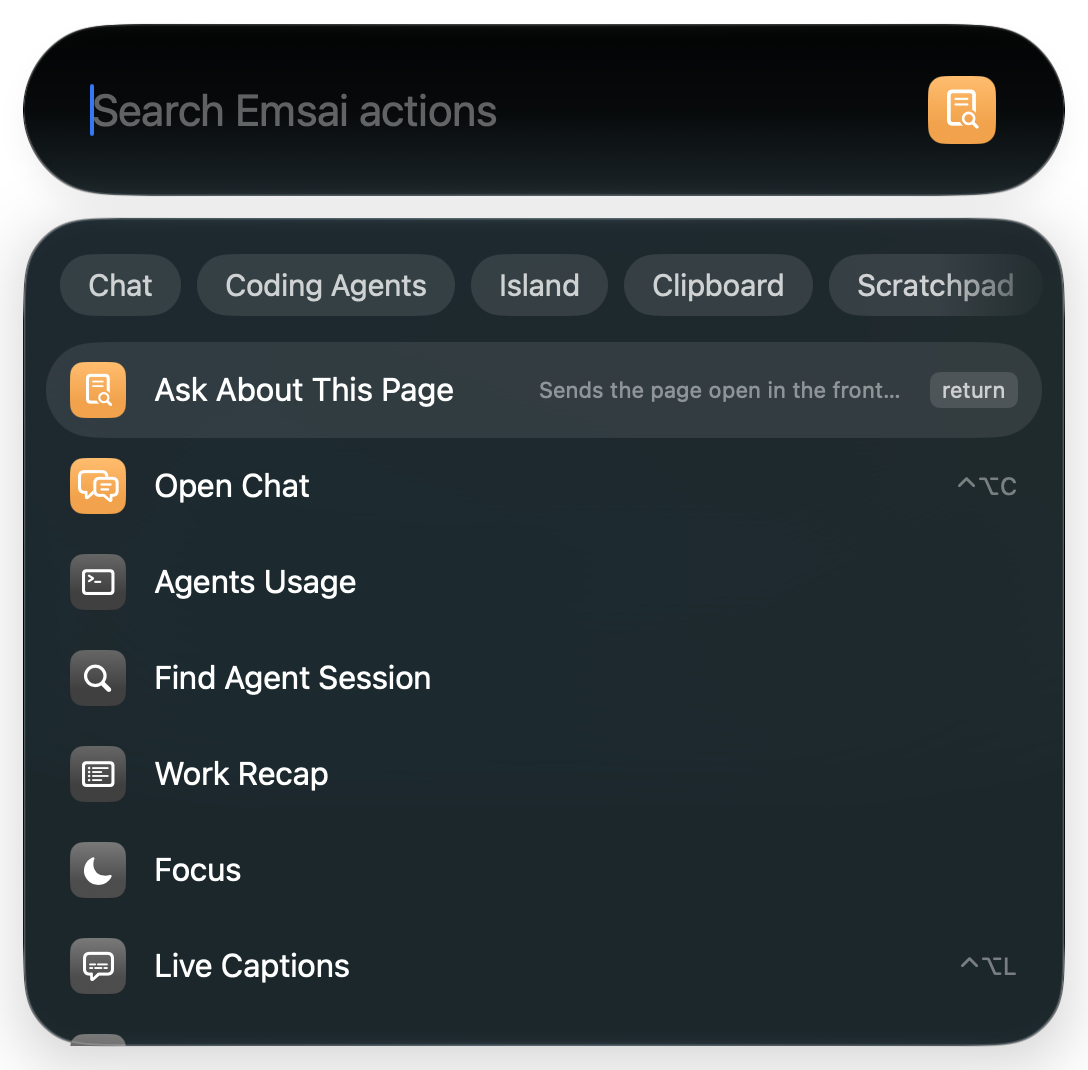
| Category | Actions |
|---|---|
| Chat | Ask, Ask About This Page, Open Chat |
| Coding Agents | Open Agents, Agent Sessions, Find Agent Session, New Session in Workspace, Agents Usage, Work Recap |
| Island | Live Captions, Past Calls, Focus, Mute Microphone |
| Clipboard | Clipboard, Clear Clipboard History (pinned items stay), Remove Secrets from Clipboard |
| Scratchpad | Open Scratchpad, New Note, Open Note (your Apple Notes too) |
| Repos | Agent in Repo, Terminal in Repo, New Branch in Repo, Unfinished Work, Cross-Review Branch, Debate in Repo, Open PR, Prune Merged Branches, Create Workspace, Add Folder to Workspace |
| Windows | Switch Window |
| Browser | Open Link in Profile |
| Mac | Keep Awake, Stop Keeping Awake, Toggle Keep Awake, Clean the Mac, Free Disk Space, Speed Test, Update Everything, Kill Process, Quit Apps, Set Audio Output, Set Audio Input |
| Network | Copy Public IP, DNS Lookup, Check Certificate, Test Port, Who’s on Port, Subnet Calculator, Set Network Profile, Toggle Network Profile |
| Emsai | Emsai Settings |
Each feature’s page tells more about its actions: Emsai Agents, Review and debate, Live captions, Clipboard, Scratchpad, Mac, network and browsers.
The Shortcuts app, Control Center and Focus
- Shortcuts: every Spotlight action is also an action in the Shortcuts app, under Emsai, to chain into your own shortcuts.
- Control Center (Edit Controls): Keep Awake (2 h / stop), Emsai Focus, Mute Microphone and Live Captions as controls.
- Focus filters: System Settings › Focus › a Focus › Focus filters › Add › Emsai. While that Focus is on, Emsai’s Focus or Keep Awake runs with it.
When the trial is over and there’s no license, shortcuts and actions do nothing: see License and privacy.