Live captions
Read a call as it happens in the notch, tell who said what, catch up on what you missed and keep the transcript or meeting notes afterwards.
Live captions transcribe a call in the island as it happens: what the others say, and, if you want, what you say. They work with any call app (Teams, Zoom, a web call, FaceTime), in the language you pick (any your Mac can transcribe), and everything is transcribed on your Mac.
Starting the captions
- When an app takes the microphone for a few seconds, the island shows a call and offers Live captions: click it.
- Or press ⌃⌥L at any time (Settings › Keyboard Shortcuts › System), or run Live Captions from Spotlight. They also work on a video.
The first time, macOS asks to let Emsai capture the Mac’s sound (see Permissions). Apple’s speech model is downloaded and kept by macOS the first time it’s needed.
What you see
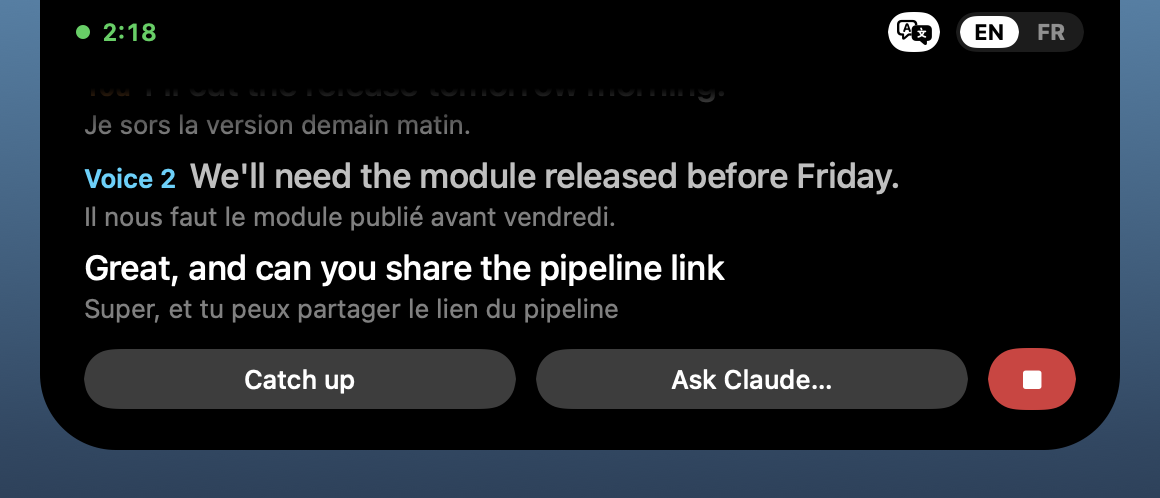
The island stays open on the captions: rolling lines, what’s already been said softer, what’s being said bright. The call’s clock sits on the left of the notch, your languages on its right (EN | FR, for example), and below: Catch up, Ask… (named after your AI model) and a red Stop button.
- Two fingers up fold them: they keep running, with the call’s clock in the notch, and show again when you hover. Two fingers down keep them open.
- They’re the island’s first page, not all of it: swipe sideways for what else runs (a session waiting for you, its question…).
- A message during the call (a session done, a question, an alert) shows as a one-line banner above the captions, with its buttons or Show.
You and the call’s voices
The call’s sound is transcribed on its own, and each line says who:
- Them, or, with voices told apart, Voice 1, Voice 2…, each in its colour. A small model in the app tells the voices apart on your Mac; nothing is sent. Settings › Live Captions › Tell the call’s voices apart turns this off (everyone is Them). The people button in the captions’ header switches the same setting, for the words alone.
- You (orange), only if Settings › Live Captions › Your voice is on. It’s off by default: then only the call’s sound is captioned and Emsai never asks for the microphone.
On a FaceTime or phone call with one person, their name from FaceTime shows instead of a voice number.
With your speakers on, the microphone hears the call too: Emsai recognizes those lines and drops them, so You stays you. It’s even better with Your voice print (in the same settings, once Your voice is on): Record… and read a short text aloud (25 seconds, in your language; with two, Add … reads the other into the same print), or just wear a headset and it learns your voice on its own. The print is kept in your keychain; Forget erases it.
Naming a voice
Under the captions, a chip per voice heard (the last six, the others counted). Click a chip, type the person’s name, press ↩. The name replaces “Voice N” on the lines already shown, on what that voice says next, and in the transcript and meeting notes. An empty name takes it away. Names belong to the call.
Checking the voices again
With Settings › Live Captions › Check the voices again on (the default), a larger model goes over the whole call every 2 minutes and once more when you stop, and puts each line with the right voice. It’s much better on calls with many people. Its models are downloaded once, the first time; at the end, the island says Checking the voices for a moment. It runs on your Mac.
Your languages
Settings › Live Captions › Languages: the language you hear most in calls, and a second one if you switch between them. With one, the captions stay in it. A second language is offered where the pair was tested on real calls: English with French, German, Spanish, Italian, Portuguese, Korean or Chinese, and French with German, Spanish or Italian. Put the language of your calls first: it’s translated into yours by itself.
With two languages, the language is detected from the sound, on your Mac. Settings › Live Captions › Detect the language:
- Once a call (the default): found in the first 20 seconds or so of speech, then kept for the call. Calmer: accents can fool the sound.
- Follow the call: every change followed, about 5 seconds after.
- Off.
Click a language (EN | FR) to switch by hand at any time; the transcript goes on. For English, pick the accent Apple’s model expects in English accent (United States, United Kingdom, India, Australia, Canada, Ireland, Singapore).
Translation
With two languages, the 文A button next to them shows each phrase with its translation underneath, small: one heard, the other shown. It uses Apple’s translation on your Mac. Download the languages once in Settings › Live Captions › Translation. With Translate … by itself on, your calls’ language is translated without asking; 文A still turns it on or off for the call.
Scrolling back
Swipe two fingers up and down over the captions’ text to scroll back through the whole call. A pill with the time and Live brings you back, and so does leaving them alone for 15 seconds.
Catch up and asking about the call
- Catch up: what you missed in the last minute, in two sentences at most, above the captions.
- Ask…: type a question about what’s being said (“what did they ask me?”, a word you missed). It goes to your AI model with the last 3 minutes of the transcript.
Nothing is kept. This is the only part that leaves your Mac, and only when you click. See Chat and AI models to choose the model.
Stopping
Click the red Stop button, then Stop (Keep On to carry on), or press ⌃⌥L again. Captions started for a call also stop on their own when the call ends.
After the call: transcript and meeting notes
With 30 words or more, the island offers:
- Keep Transcript: a note in the Scratchpad, a paragraph per turn with its time and who spoke, ending with I said I’d do, the things you promised.
- Report, then Meeting Notes or Interview Report: your AI model writes the notes (summary, decisions, actions with who and when, open questions) in the call’s language. Open them to tick actions, Edit them (rename voices, fix items), Copy for a Mail, Save them, or make a One-pager to send.
- Message: a short recap opened in Messages, to the person you called (or one you pick in Contacts). You press Send yourself.
Ignore it for 20 seconds, or dismiss it, and nothing is kept and nothing is sent.
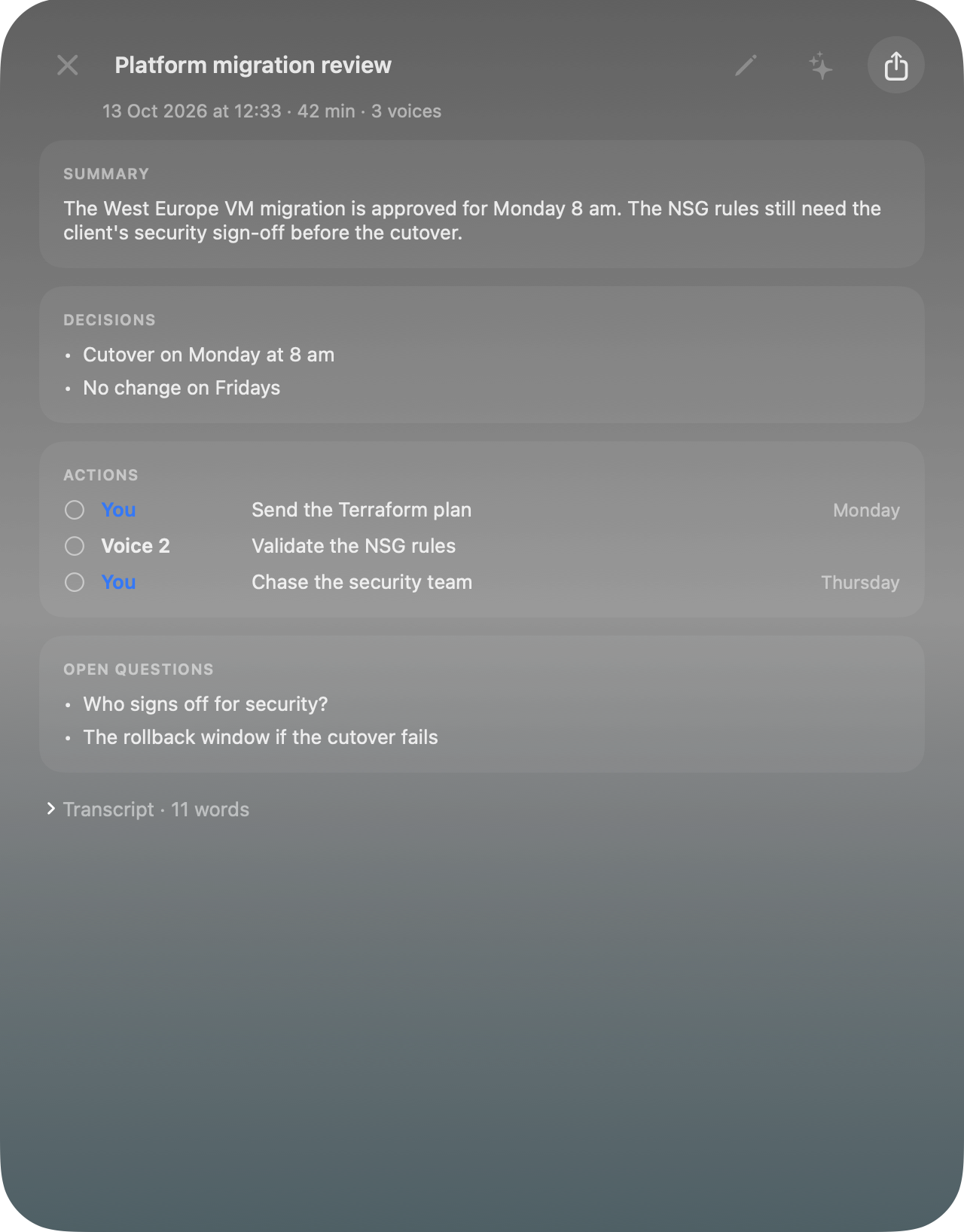
Past Calls (Spotlight or ⌃⌥O) lists your calls, searchable by person, app or a word said, to read again, copy, keep or turn into a report. Settings › Live Captions › Keep transcripts: Off, 7, 30 days (default), 90 days or Forever. Transcripts stay on this Mac, out of backups. If Emsai quits mid-call, starting the captions again within 15 minutes picks up the same transcript.
Permissions
- Sound capture: macOS asks the first time to let Emsai record the Mac’s sound. No screen recording is involved. If it was refused, the captions say so; allow Emsai in System Settings › Privacy & Security › Screen & System Audio Recording, then start them again.
- Microphone: asked only when you turn on Your voice. Refused, the setting goes back off.
- Contacts: asked the first time you use Message.
Everything on your Mac
Transcription, voices, language detection and translation all run on your Mac: no audio leaves it. Only Catch up, Ask… and the reports you request send text to your AI model, when you click.