Getting started
Install Emsai, go through the first launch, and find your way around the app.
Emsai is a menu bar app for macOS 26 Tahoe or later. It runs the coding agents you’ve installed in one native window, and puts the Mac around them in the same app. This page takes you from the download to your first session, then points you to the page for each feature.
Install Emsai
- Download Emsai from the download page.
- Open Emsai.dmg from your Downloads folder and drag Emsai to Applications.
- Open Emsai. The 7-day trial starts: every feature, no card, no account.
With Homebrew instead, the same app from the same notarized disk image, in Applications:
brew install emsai-org/tap/emsaiEmsai updates itself either way (brew upgrade emsai works too), and brew uninstall emsai removes it; add --zap to delete its data as well: notes, clipboard history and settings.
The first launch needs an internet connection: it starts the trial with Emsai’s license service (see License and privacy).
Emsai lives in the menu bar. It never shows in the Dock or in ⌘⇥, and it starts with your session (Settings › General › Launch at login).
The welcome window
The first launch opens Welcome to Emsai, four short steps. You can skip any of them and come back later: Settings › General › Welcome window › Show.
- Permissions and your voice. Accessibility now: most of Emsai needs it (pasting into the previous app, moving other apps’ windows, reading the selected text, dictation). The Microphone and Screen Recording wait for the first feature that needs them, or Allow Now; each one opens System Settings on the right pane, with a guide beside it. Screen Recording has macOS restart Emsai: the window comes back at this step. Then pick your languages (your calls’ language, and yours if you switch), and record a print of your voice if you like, so your own lines show as You in the captions. It never leaves the Mac.
- Your coding agents. Emsai lists the agents it found on your Mac (Claude Code, Codex, Copilot CLI, Antigravity CLI, OpenCode, Cursor) with their sessions this week; one installed meanwhile shows within half a minute, or at once with Check Again. Pick the ones Emsai works with (installed doesn’t mean wanted) and the one it starts by default. Install the hooks lets the island know when an agent is done or needs you. Below, Where your repositories are: the folders Emsai searches for git repositories (Add Folder…).
- Also on this Mac. What Emsai found: another clipboard app’s history to bring in (Import it), whether your Mac has a notch (without one, the island hangs from the menu bar), your browsers, so each link can open in the right profile (Set up the profiles), and where Emsai lives from now on: Spotlight, the menu bar and its floating panels (⌃⌥O lists every action).
- Turn on what you want. Every feature with its switch. Each switch is also at the top of its Settings page, and a feature turned off doesn’t run at all. Get to Know Emsai closes the welcome on the missions (see Learn as you go).
Permissions
Beyond Accessibility, asked in the welcome window, Emsai asks for nothing up front. macOS asks the first time a feature needs it:
| Permission | Asked for |
|---|---|
| Accessibility | Arranging windows, the visual ⌘⇥, pasting from the clipboard history, typing what you dictate, reading the selected text |
| Screen Recording | Window thumbnails in the visual ⌘⇥ (without it, app icons) |
| Microphone | Your side of a call in the live captions, and dictation |
| System audio, calendar, Downloads… | Only by the feature that uses them, when you turn it on |
Settings › General › Permissions shows where each one stands. You can change any of them in System Settings › Privacy & Security.
The menu bar and Settings
Emsai’s menu bar items are small and each has its switch:
- The usage ring: how much of your coding agents’ plans is used. See Agents’ usage.
- The Mac state icon: CPU, memory, disk, battery, network. Settings › Mac & Network › Mac state in the menu bar.
- Keep Awake’s cup, while the Mac is kept awake.
Their panels open on hover, or on click only (Settings › General › Menu bar panels open on hover).
To open Settings: press ⌃⌥P, type Emsai Settings in Spotlight, or open Emsai again from the Finder or Spotlight while it runs. Settings has a page per feature, a search field, and License. To stop Emsai: Settings › General › Quit Emsai › Quit (shortcuts, the island, the clipboard history and the menu bar icons stop until you open it again).
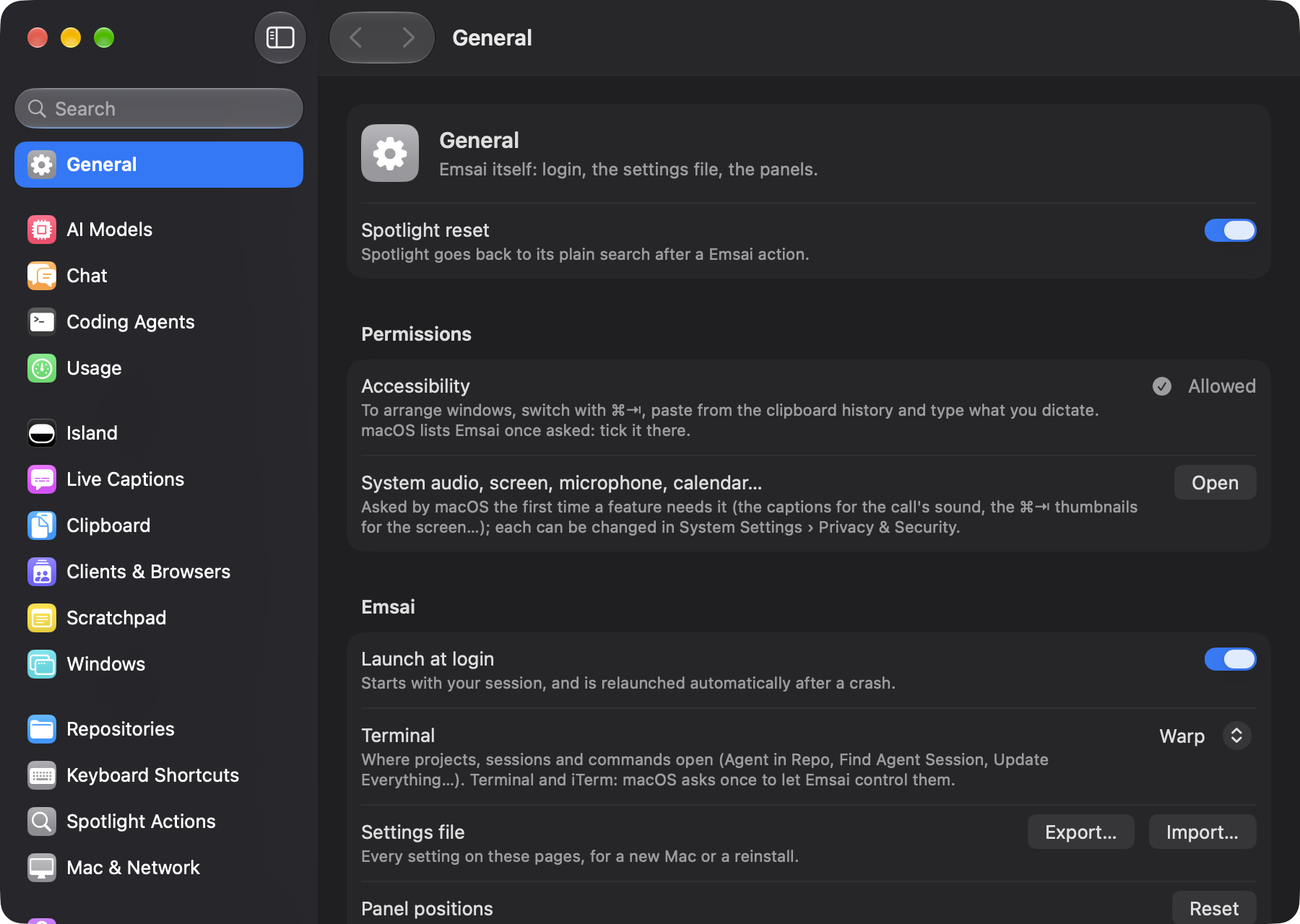
Moving to a new Mac? Settings › General › Settings file › Export…, then Import… on the other one.
Learn as you go
Settings › General › Get to know Emsai › Open lists short missions that tick themselves as you do them, each with Show Me. Now and then the island offers the next one, never while something else is going on. Practice Session runs a pretend agent in a sample repository: answer its question, allow an edit, see the change. Nothing leaves the Mac. Both are also in the Help menu of Emsai Agents.
Something broke?
Settings › General › Send Feedback… (also Help › Send Feedback… in Emsai Agents) opens a mail to hello@emsai.app in your mail app, with Emsai’s and macOS’s versions already in it. Say what happened and what you expected. Every message is read.
What’s in Emsai
| Page | What it covers |
|---|---|
| Emsai Agents | Your coding agents’ sessions in one window: approvals, diffs, Auto mode, workspaces, terminal |
| Review and debate | A branch reviewed by your other agents, a question debated by all of them |
| The island | The notch: an agent waiting, a call, a download, the drawer on hover |
| Live captions | Calls transcribed and translated on your Mac, meeting notes, past calls |
| Clipboard | Clipboard history, pins, secrets removed |
| Shelf | Files held for a moment, ready to drop |
| Chat and AI models | A floating chat with the AI you pick, and which model does what |
| Scratchpad | Quick notes, encrypted, with your Apple Notes |
| Windows | Window layout from the keyboard, the visual ⌘⇥ |
| Agents’ usage | Each agent’s plan, its limits and forecasts |
| Mac, network and browsers | The Mac’s health, Keep Awake, network checks, browser profiles |
| Shortcuts and Spotlight | Every shortcut, and the actions in Spotlight and Shortcuts |
| License and privacy | Trial, buying, activating, moving to another Mac, what stays on the Mac |