Scratchpad
Write quick Markdown notes in a floating panel, with your Apple Notes in the same list.
The scratchpad is a floating panel for notes. Your notes are on the left and the selected one is on the right. Notes are plain Markdown, saved as you type, encrypted on your Mac, and kept until you delete them.
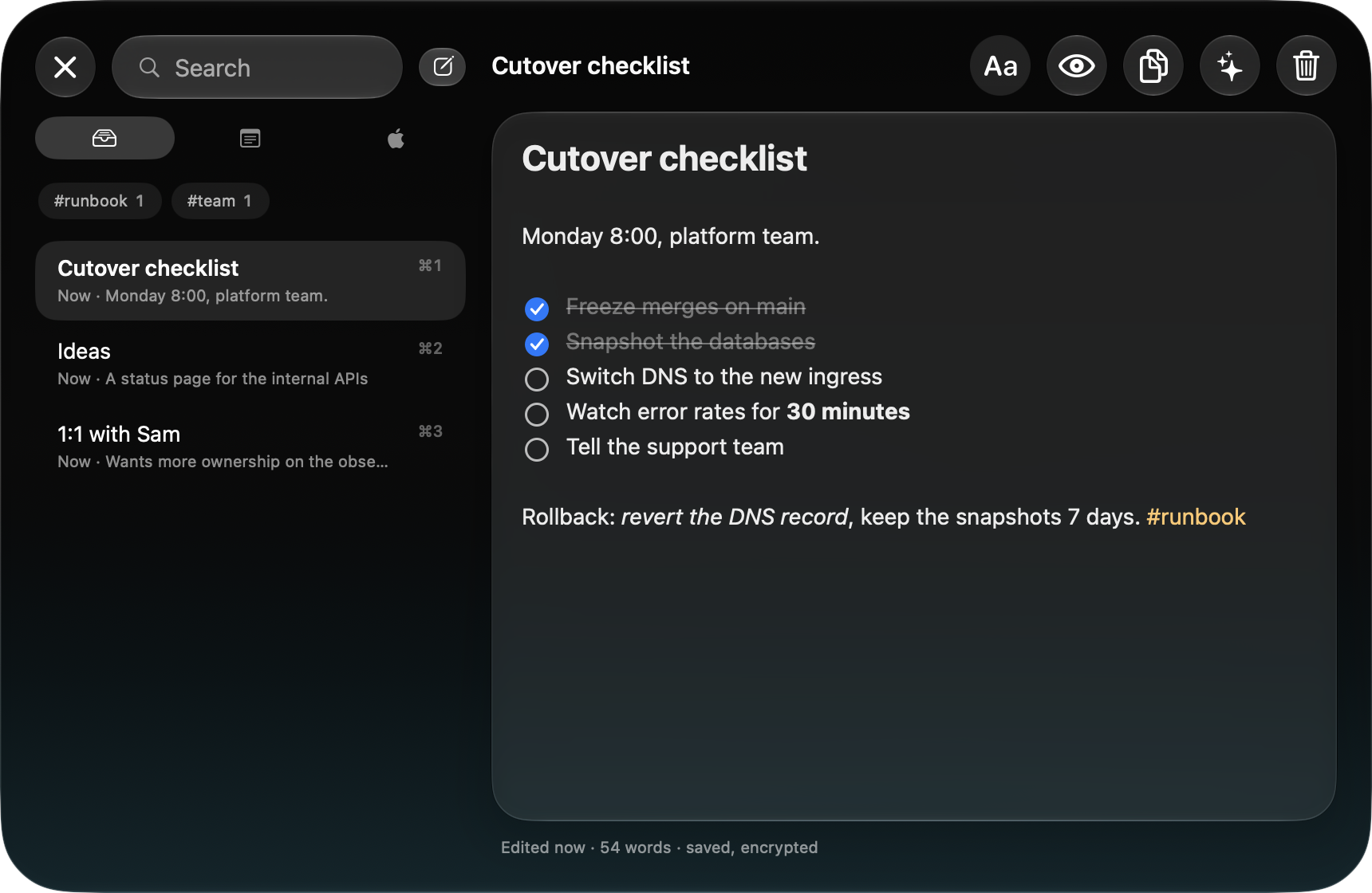
Open it
- Press ⌃⌥N, or run Open Scratchpad from Spotlight. The panel opens on the last note you looked at.
- From Spotlight, New Note opens a blank note, and Open Note searches the text of every note (Apple Notes included) and opens the one you pick.
- Esc closes the panel. A note you left blank is dropped.
Write in Markdown
The editor styles Markdown as you type: titles and headings, bold, italic, monospace and code blocks, links, lists, checkboxes and quotes. The Markdown marks are dimmed.
- ⏎ in a list starts the next item: numbers go up, and a new checkbox comes unchecked. ⏎ on an empty item ends the list.
- ⇥ / ⇧⇥ indent or outdent list lines.
- Click
[ ]to tick a checkbox, and[x]to untick it. Ticked items are struck through. ⌘⇧L turns the selected lines into a checklist. - The Aa button lists every format: title, heading, subheading, bold, italic, monospace, link, checklist, and bulleted or numbered lists.
- ⌘V with an image on the clipboard (a screenshot, say) puts it in the note where the cursor is. You can move or delete it like a character.
- ⌘-click a link to open it in the right browser profile.
Tags
Write # stuck to a word to tag a note: #runbook, #client-x. Headings (# Title), page anchors and numbers (#1) aren’t tags. Chips under the list show your tags with their counts. Click one to show only those notes, and click it again to show them all. Search works on top of the chips.
Search
⌘F searches the notes. Every word you type must appear in the note. ↑ ↓ move through the results, and ⏎ takes you back to the text. ⌘1…⌘9 open the nth note in the list.
Keys
| Key | Does |
|---|---|
| ⌘N | New note (see below for which kind) |
| ⌘⇧N | New note of the other kind |
| ⌘B / ⌘I / ⌘E | Bold / italic / monospace around the selection |
| ⌘K | Link on the selection (a copied address fills it in) |
| ⌘P | Markdown preview, and back |
| ⌘⇧C | Copy the whole note |
| ⌘⌥A | Send the note to the chat, in a new conversation |
| ⌘⇧⌫ | Delete the note (asks first unless it’s blank) |
Your Apple Notes alongside
You can show your Apple Notes in the same list, newest first, each marked with an Apple logo and its folder. This feature is off on a new Mac. Turn on Apple Notes in the scratchpad at the top of Settings › Scratchpad. macOS then asks once to let Emsai control Notes. If you refused, you can allow it later in System Settings › Privacy & Security › Automation.
- The buttons above the list (or ⇥ in the search) switch between all notes, only your scratchpad notes and only Apple Notes. Folder chips appear next to the tags. You can combine a folder and a tag.
- An Apple note opens in the same editor, as Markdown. What you type is written back to Notes a moment after you stop, and when you switch notes or close the panel. The footer tells you when it was saved.
- ⌘O opens the note in Notes, and the ↓ button copies it into a new scratchpad note.
- New notes: Settings › Scratchpad › New notes go to picks Apple Notes or Scratchpad for ⌘N. ⌘⇧N makes the other kind. A new Apple note goes into the folder whose chip is selected, or else into your default folder. If you leave a new Apple note empty, it’s deleted.
What goes back and forth: titles and headings, bold, italic, monospace, links, lists, and images inside the note. Checkboxes stay as [ ] text in Notes, because Notes’ own checklists can’t be created from outside the app. Apple Notes’ own tags don’t show, but their folders do.
Some notes stay read-only in the scratchpad, and the footer says why: notes with tables, underlined or coloured text, locked notes, or attachments such as scans, drawings or files. Press ⌘O to edit them in Notes. Before each save, Emsai reads the note again. If it changed elsewhere since you opened it (on your iPhone, say), nothing is overwritten. Copy your text, then reload with ↻.
Nothing from Apple Notes is written to disk by Emsai: the list is read when the panel opens and kept in memory only. If Emsai had to start Notes, it starts it hidden and quits it a while after you close the panel.
Encrypted on your Mac
Scratchpad notes and their images are encrypted on your Mac, with the same keychain key as the clipboard history. If the keychain is locked, the notes you type meanwhile stay in memory and are saved once the keychain gives the key back.
Turn it off
The Scratchpad switch is at the top of Settings › Scratchpad. You can change ⌃⌥N in Settings › Keyboard Shortcuts, and put the panel back in its place with Settings › General › Window positions.