Clipboard
Find, paste and reuse anything you copied, with secrets masked and the whole history encrypted on your Mac.
Emsai keeps everything you copy (text, links, files and images) in an encrypted history on your Mac. Press ⌘⌥V from any app, find what you copied, and paste it where you were.
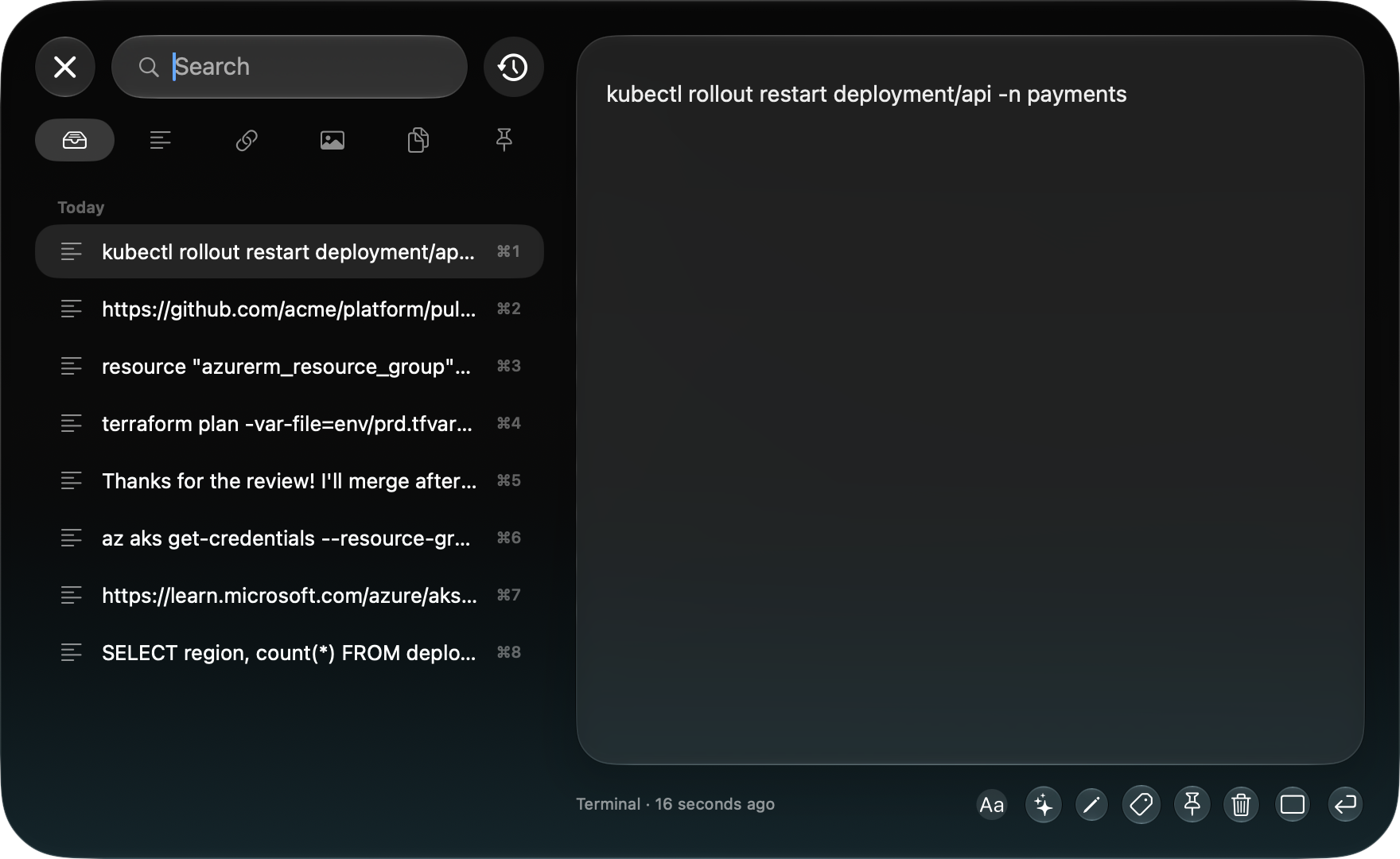
Open the history
- Press ⌘⌥V, or run the Clipboard action from Spotlight.
- The panel opens on your latest copy. The list is on the left, sorted into Today, Yesterday and then by date. A full preview of the selected item is on the right.
- Press ⏎ to paste the selected item into the app you came from. You can also press ⌘1…⌘9 to paste the item at that position in the list.
- Esc closes the panel.
If you copy something that’s already in the history, it moves back to the top and keeps its pin.
Search and filter
Start typing to search. ↑ ↓ move the selection while you type. ⇥ and ⇧⇥ switch between the filters: everything, text, links, images, files and pinned items.
Text items show in the preview with their Markdown styled (headings, bold, code, links, lists), and you can select part of the text. ⏎ then pastes only what you selected. ⌘F finds words in the text shown: every match lights up, ↩ goes to the next one and ⇧↩ to the previous one.
Pin and name what you reuse
- ⌘P pins an item. Pinned items are never deleted by the automatic cleanup. They stay folded under their Pinned header so the panel opens on your latest copy. Click the header to unfold them, or use the Pinned filter.
- ⌘R names an item. A named item becomes a pinned snippet, and the search finds it by its name.
- ⌘E edits a text or link item in place, with the same Markdown editor as the scratchpad. ⌘⏎ saves and Esc cancels. The item keeps its pin, its name and its place in the list.
Actions on an item
The buttons under the preview depend on what the item is: Transform, Ask and Edit for text, the text of the image and Quick Look for an image, and Open, Quick Look and Reveal for files. They’re followed by ···, Pin and Paste. The ··· menu has the rarer actions, including Keep Open After Pasting, which keeps the panel open so you can paste several items in a row.
| Key | Effect |
|---|---|
| ⌘C | Copy without pasting |
| ⌘⇧V | Paste transformed: UPPERCASE, lowercase, one line, trimmed lines, pretty JSON |
| ⌘T | The text of an image (read on your Mac, in French and English), ready to paste |
| ⌘O | Open: a link in its browser profile, a file in its app, an image in Preview |
| Space or ⌘Y | Quick Look |
| ⌘⇧R / ⌘S | Reveal in Finder / save an image as PNG |
| ⌘⇧F | Copy an image as a PNG file, to drop in Finder, Slack or Mail |
| ⌘⌥A | Ask the chat about this item, in a new conversation |
| ⌘⌫ | Delete |
You can also drag a row out of the panel as what it is: an image as a PNG file, files as files, a link, or text. Drop it on the shelf, in a window or in Finder.
Secrets stay hidden
- Copies from password managers are never recorded. Password managers flag their copies, and Emsai skips them. Apps you exclude are skipped too. 1Password is excluded by default. To exclude more apps, go to Settings › Clipboard › Never Record Copies From, or use the clock menu in the panel.
- Secrets are masked in the list. Text that looks like a token, a key or a password stays masked until you click it (Mask secret-looking items).
- Secrets in screenshots are blurred. When you copy an image, your Mac reads its text, without sending it anywhere. Random-looking tokens, the value after a label such as
password:ortoken=, and key-like values in a column under such a label are pixelated. A card tells you when this happens, and a plain ⌘V elsewhere pastes the blurred image (Put the blurred image on the clipboard). The history keeps the original as well: the “N secrets blurred” badge in the preview switches between the two, and ⏎ pastes the one shown. You’ll find the settings under Settings › Clipboard › Screenshot blur, where you can also edit the Secret labels. - Share text without its secrets. When you copy a log, a config or a command’s output with a secret in it, the island offers Take them out. Each secret is then replaced by
[redacted …]on the clipboard, ready to paste. The Remove Secrets from Clipboard action (in the ⌃⌥O palette or Spotlight) does the same with whatever text is on the clipboard.
Encrypted, on this Mac
The history never leaves your Mac. It’s encrypted, and its key is kept in your keychain. If the keychain doesn’t hand over the key (for example, when it’s locked), Emsai keeps the session’s copies in memory only and asks again later. Once you allow it, those copies join the history. The island tells you when this happens.
How long items are kept
Go to Settings › Clipboard › Automatic cleanup:
- Keep yesterday and today (the default), Keep today only, Keep the last 7 days, Keep the last 30 days or Keep everything.
- Items kept at most: 500 by default. The oldest items go first, and pinned items don’t count.
- Largest image (10 MB by default) and Largest text (2 MB by default). Anything bigger isn’t recorded.
If you shorten the retention and that would delete items, Emsai asks you first. You can also clear the history from the clock menu in the panel, or with the Clear Clipboard History action.
Bring in your old history
Coming from another clipboard manager? Go to Settings › Clipboard › Import another app’s history › Import… and pick its history file or export. Copies come in with their dates, and with their pins when the other app kept them. If the same content is already in your history, it keeps its pin and name. Depending on the app, images may stay behind. The import tells you how many items it couldn’t bring in, and if your cleanup settings would delete older copies right away, it offers to keep everything. The other app’s files are only read, never changed.
Copies tagged by client
If you work for several clients, each copy can be tagged with the context it comes from: the browser profile of a page, or the repository open in your editor or terminal. Turn on Clipboard contexts in Settings › Clients & Browsers. This needs Browser profiles; see Mac, network and browsers. The tag shows on each item, and typing a client’s name in the search lists what came from that client. When you paste from the panel into another client’s context, Emsai asks you first (Ask before pasting into another context). A plain ⌘V outside the panel isn’t checked.
Turn it off
The Clipboard history switch is at the top of Settings › Clipboard. You can change the ⌘⌥V shortcut in Settings › Keyboard Shortcuts.